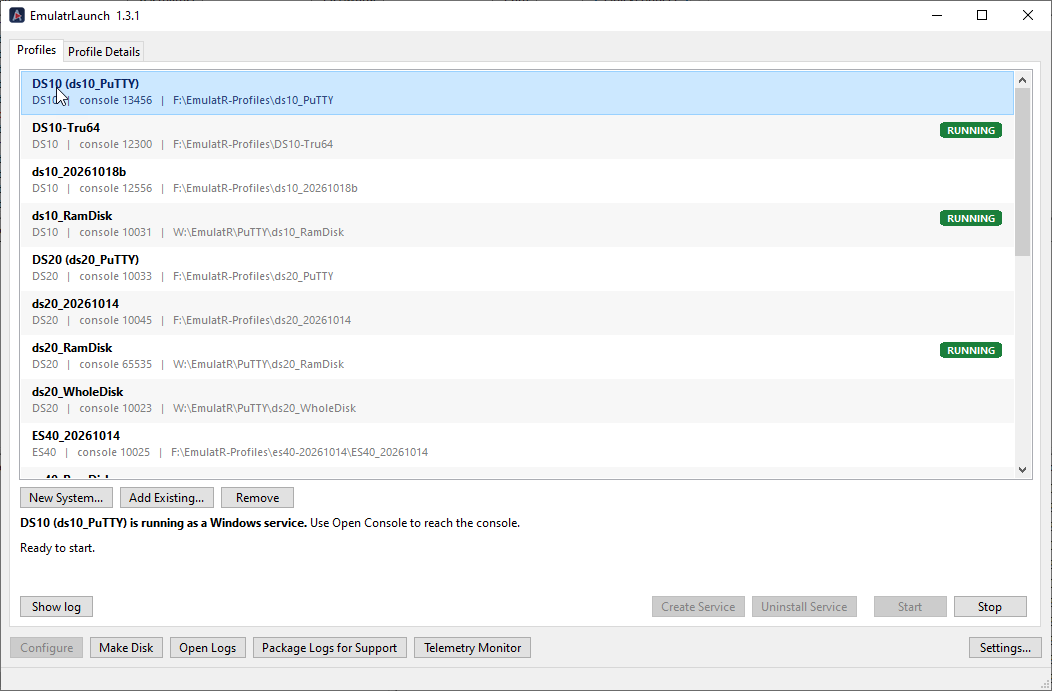
The system list
Each system (a profile) shows its name, model (DS10, DS20, ES40, ES45 or a VAX), its console port and the folder that holds it. Select one to work with it.
Status at a glance
A green RUNNING label marks systems that are up; a red NEEDS ATTENTION label marks one that stopped with a problem. The line below the list names everything that is running.
New System and Add Existing
New System walks through creating a system step by step: model, CPUs, memory, disks and network. Add Existing brings a system folder you already have into the list; Remove takes it out of the list.
Start and Stop
Start runs the selected system and opens its console in PuTTY, connected to the system's console port; Stop shuts it down cleanly. Several systems can run at once.
Run as a Windows service
Create Service installs the selected system as a Windows service, so it starts with the host and keeps running with no one logged on; Uninstall Service removes it. The status line says when a system is running as a service, and Open Console reaches its console (Subscription).
Profile Details
The second tab shows the selected system's settings in full: firmware, manifest, disks, network and telemetry.
Configure
Opens the system's hardware in the Platform Editor: CPUs, memory, buses, adapters and disks, checked before the system starts. It is available while the system is stopped.
Make Disk
Creates a new virtual disk file of the size you choose, ready to attach to a system.
Open Logs and Show log
Open Logs opens the selected system's log folder; Show log displays the Launcher's own log.
Package Logs for Support
Collects the logs a support case needs into one package you can send to eNVy Systems.
Telemetry Monitor
Opens the Telemetry Monitor, which attaches to the running systems and charts their counters live.
Settings
Launcher-wide settings, such as where systems are kept and how consoles are opened.